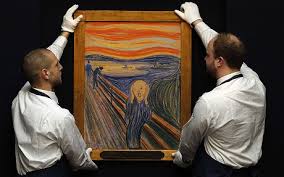
Graphic Design Week 6

Screen Shot 2019-02-16 at 3.06.53 PMStudents finished their Soccer ads. We have Monday off. I’m planning to do a critique of the student work that was finished. For my larger groups, have about 4-5 students come up at a time to look at the work. They are pretty honest about what they like and don’t like. I agree with them and make some additional comments. I think next time I’m going to give them a direct critique of their own work instead of having them pick out the ones they like.

Then the rest of the week students will work on a poster design for lacrosse. That includes making a mood board. I want to go over some really basic typography terms. There is a fun game I have students play called I shot the serif. Then I’m going to have them learn how to install fonts as a bellringer.

I’m probably going to give the students a couple of weeks. I’d like my higher students to try and add the game schedule, but we’ll see. Might be too much. I’m also having a contest for a gift card to itunes for the best design. I’m going to have my students in my animation classes vote on it.


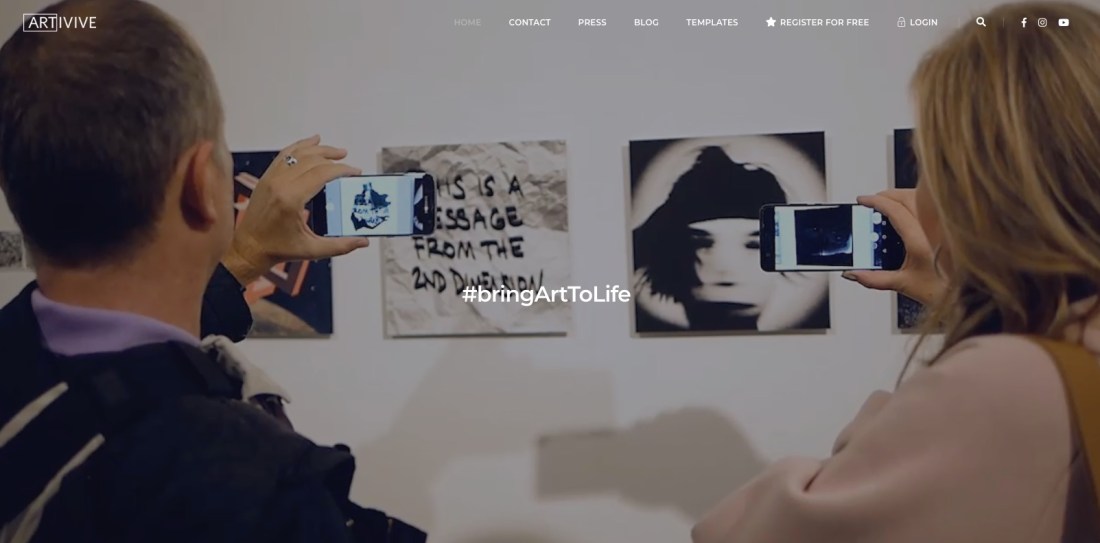
Artivive APP

Screen Shot 2019-02-02 at 10.37.52 PM

I’m super excited to try this with my animation class. I could do this with my graphics/photography class as well. About 4 months ago this app came out called Artivive. I think it takes art into a whole new realm. Animation and video bring a new dimension to the work. The app is available for android or iOS. Free!!! Every art teacher on a budget has got to love it. I’m thinking I’ve taught my animation students how to creating animations in Photoshop and then export as MP4 files. They we print out a frame from the animation then print out the symbol that activates the animation/video when you focus it with the app it plays. Sweet! Their animation will actually play on someone’s phone as long as they have the app. Also with my graphics/photography students we will make cinemagraphs. We print out a frame and then people can actually watch their cinemagraphs. How cool would that be? They are using this in major museums and galleries through out the world. #1 downloaded app in Singapore.


Animation Week 4

screen shot 2019-01-26 at 12.58.07 pm

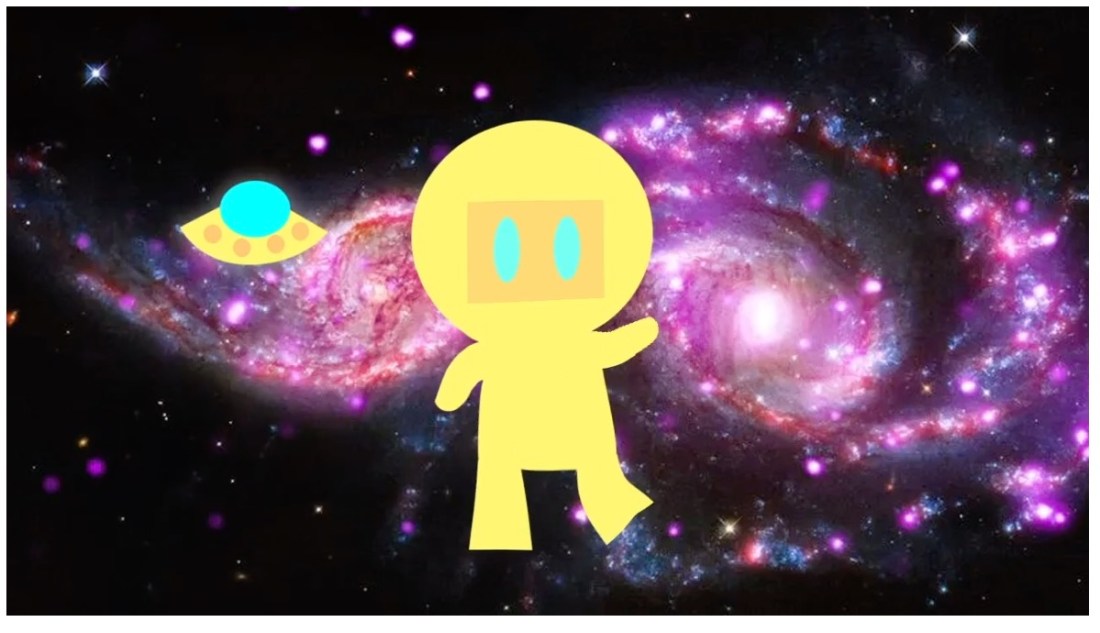
Audio, oh audio, where for thou audio. Finally got the students animations exported from Photoshop on Friday. They are learning Premiere and starting on post-production. We got a title, and transitions. Working on looking for audio on Monday. The rest of the week will Premiere skills and how to create an animation in Photoshop using the Puppet Warp feature. They have to get a photo of a boxer to box before they make their own. I made an animation Robot Dancer to the Safety Dance Song.

Screen Shot 2019-02-02 at 10.32.43 PM

I think there is a learning curve with using Premiere. Many students are used to good old iMovie and would prefer that. I like Premiere because you just have more control and better effects, etc. It’s a good step into then learning After Effects. I don’t think we’ll get to After Effect semester 1. I tried Adobe Rush at home, boy I didn’t care for it. It is easier than Premiere, but I felt like it is clunky in comparison to iMovie. Just a personal opinion. I’d rather just use Premiere, or I’m just used to Premiere and I’m being stubborn and don’t want to really learn it.

I was disappointed that Premiere no longer supports animated GIF.  I’d had my students make some GIF animations 1st semester and then Premiere stop supporting it. Like what? Oh well, moving with the times.

I’ve cut down the number of frames my students have to create. I decided 20 frames total and then they can loop it several times in Premiere. Building them up to a higher frame count. My poor students last semester I was giving them # of seconds, and it was a lot. Live and learn.

Graphic Design Week 4

IMG_1191~photo.JPG

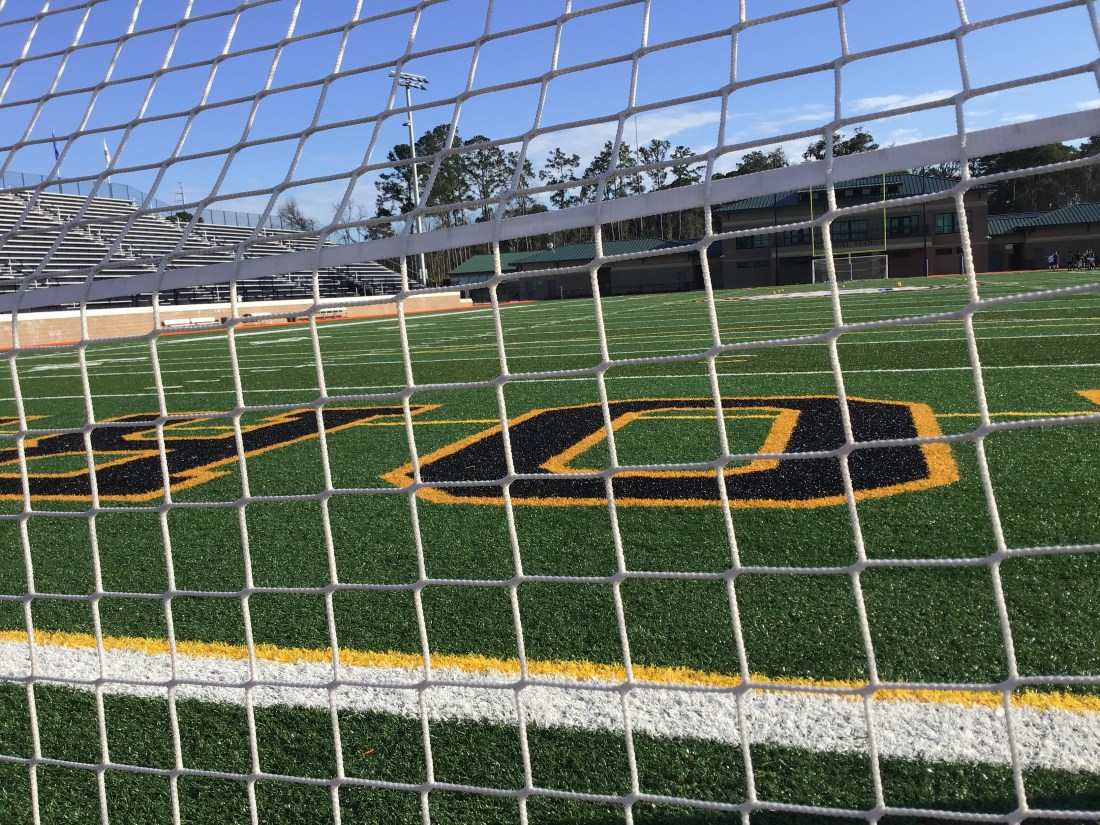
This Friday I went to my first soccer game. Never been before, so much more exciting when you know the players. Some of my students are on the team. I took some video of the game. Plus got some night shots. This shot you see is from practice earlier in the week. They will be using the photos I took to create an advertisement for Adidas. I think they will turn out pretty cool. We start with the mood boards and research on Tuesday. Monday gotta upload photos from the search for objects/shapes that look like letters. Then I think we have to back up files. Monday will be an easier day. The rest of the week learn some new photoshop skills: layer styles, adjustment layers, and color correction.

Animation Week 3

screen shot 2019-01-26 at 12.58.07 pm

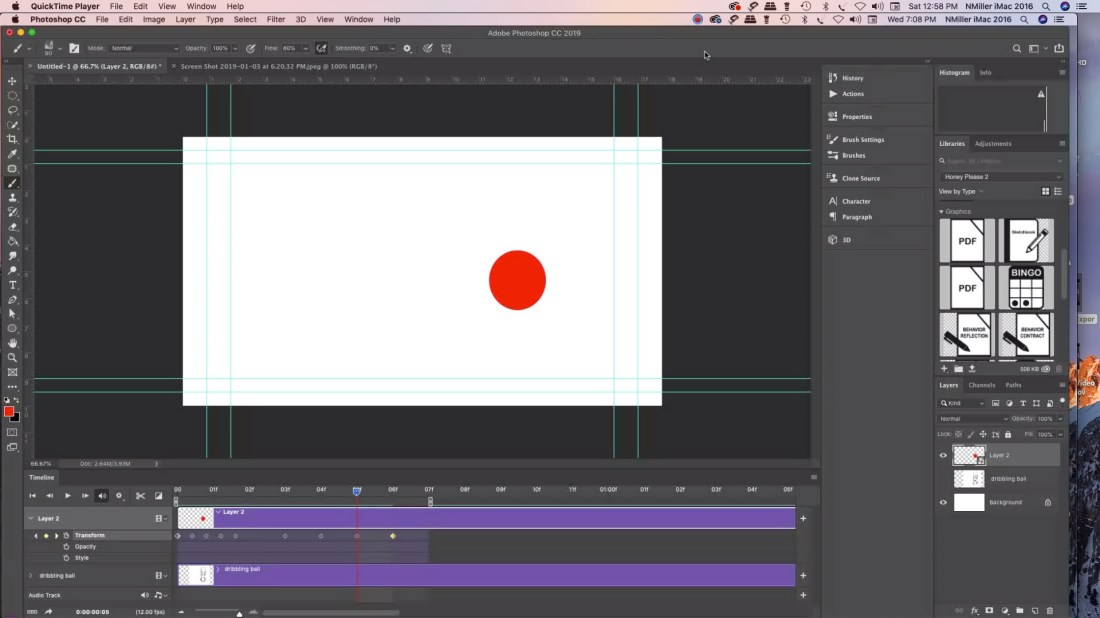
Students started creating their bouncing ball animations in Photoshop. Probably wondering why Photoshop (PS) instead of jumping into Animate or another program. I decided that even though it is limited for animation software you can teach students to animate in 3 ways. The big plus was that I wanted students to feel like they had a frame of reference for when we do switch over to other software. I’ve found that once we start post-production students may struggle with it. Also I think I’ve gotten better a teaching it. That probably helps as well.

Working in a PC lab there is no iMovie. My students tend to lean towards apple products. Nothing wrong with that I’m all Mac at home. iMovie is very easy to use, but has limited features. Adobe Premiere is more robust and you can do so much more with the editing. I prefer it. Then when you want to switch to After Effects I think it helps starting with PS.

Students had to animate a bouncing ball based off of Preston Blair’s Animated Ball sequence. That is all over online. A dribbling ball, and then a ball animated anyway they like.  Tuesday students will start learning post-production in Premiere. I think it will take a week. Well worth taking the time to learn and then students will feel more confident using the software.  As far as audio is concerned I’m just going to teach them how to find audio. Later we can learn foley work. I ordered a Blue Yeti for myself. Probably use Audacity. We have audition, but the more I read reviews most Youtubers are using Audacity. It is good enough for Marques Brownlee. Love his tech reviews.

I also think there will always be some students that prefer animating over postproduction. I’m one of them. It isn’t my favorite thing worry about audio/titles/transition etc. I’m pretty tired from all the drawing that I feel like it was a sprint to get that done. Really is a marathon. I think it will be interesting to see which students excel in areas that I’m weak at. Then they can teach me a thing or two.

Graphic Design Week 3

studentexampleI had my students this week finish their photoshop merge photos project. It’s really for them to get used to using the tools in Photoshop to take several photos and put them into one picture. I have a youtube playlist that you can follow with. PhotoMerge Youtube. I blurred out the student name they had to add type and use the Text Warp in PS.

The photos I got from Pexels.com
The site is free and you don’t need a login to get high res images. I also spoke with another graphics teacher and he has his students use FreeImages.com

Pexels you have to be careful because there could be certain images you don’t want your students to see. FreeImages images are appropriate, but my students had a hard time and would lose connection to the site.

If you want to use the same images that I used with my students.

Toy Bus

Beach Sky

Person on Beach

Blue Barn

Students turned in their work via Microsoft Teams. Found out there is a 50 MB size limit. I had them re-save as a JPG and upload their images. We also started a weekly back up files on their OneDrive.  I think there isn’t a file limit since the school signed up for the accounts but we will see. Google Drive for personal use has a 15GB limit if you don’t have it for education.

We learned about Edward Weston Photographer. We took still life photos of fake eggs and silverware. I’m hoping to share some student examples once we color correct them.

Graphic Design Photo Wk 2 (2019)

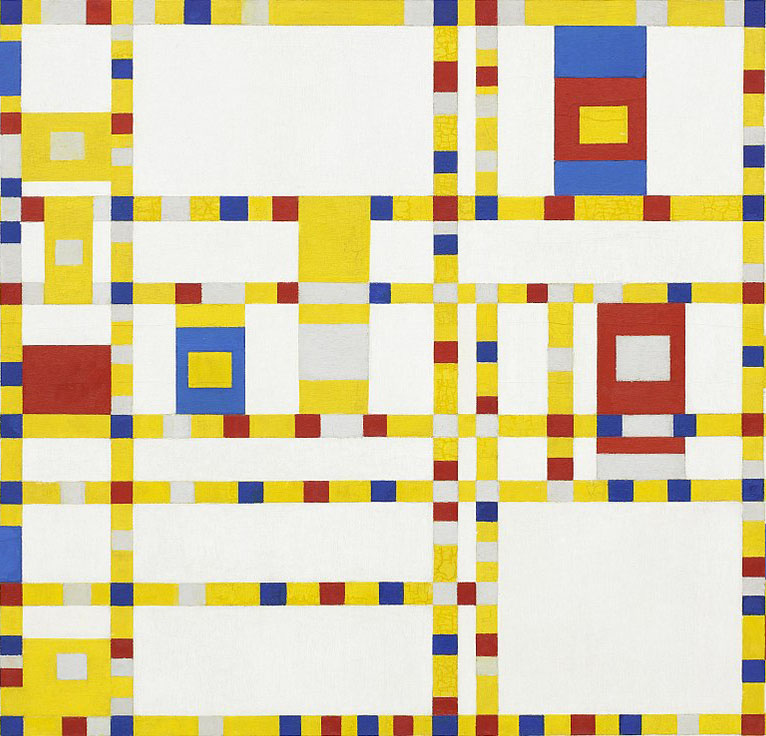
broadwayboogiewoogiesmall

It seemed like a very busy week for students. Lots of events going on. I had decided to just teach them simple basics of using Photoshop CC 2018. May of my students are familiar with it. To explain there was a previous teacher teaching graphic design/photo, so some had take the class. I get some students more familiar with it. Or if they have used free apps like GIMP or Pixlr  Photoshop will seem easier to pick up. I have a pretest that I gave a couple to see if they can composite several photos together. If they can they are exempt from this project and they can create an independent project to work on.

Reviewed using Microsoft Teams and then started recreating a piece of artwork. I decided to do Piet Mondrian Broadway Boogie Woogie. In the past I’ve used Van Gogh Starry Night or a Kandinsky. I cut a section of it and provided the file to the students to open in Photoshop.

We go over selecting using the Marquee, brush, eyedropper, shape tool for vectors, and swatches and layers panel. How to navigate with in the document. Change brush sizes.

My new catch phrase is “You can effect it when you select it!”  

I also make them use a specific workspace. Currently using the Graphics & Web workspace. I make them restore all of tools in the tool bar.

Youtube How to change Photoshop CC 2018 Workspace
Youtube How to change Photoshop CC 2018 Tools


Animation wk 1 & 2 (2019)

We worked on the beginner bouncing ball animation lesson. I had students use my bouncing ball worksheet as an introduction to the project. They used index cards and a bull clip to make a flip book. They had 17 frames for a ball moving across, 12 for a dribbling ball, and then 20 for an animation of a ball of their choice.

Here is the video link to my Student Example.

Next week we are going to take their bouncing all and then turn it into an animation in photoshop. They also recreated Steamboat Willie in Photoshop CC 2018.

Students learned how to use the paint bucket tool, brush, marquee tool, eraser, eye dropper, shape tool, workspaces, and restore tool bar, swatches panel, and layers panel.

screen shot 2019-01-19 at 9.37.35 pm

At the end of the week we did a drawing exercise. I have them draw circles then we did a step-by-step drawing of Mickey. I also had them watch a video from PBS American Experience Walt Disney. There is part 1 and part 2. We watched 30 min of it.

In my post for week 1 for Graphic Design we did the same thing getting their student email account set up and their email signature.  Then we went over Microsoft Teams, and One Drive. I call that housekeeping. You have to learn it in order to see/submit their assignments. Microsoft Teams acts as my LMS. I made the Microsoft Teams for Edu playlist on Youtube because I didn’t see much online. Of course every school is different. In my previous teaching jobs we used Google for Edu.


Graphic Design/Photo week 1

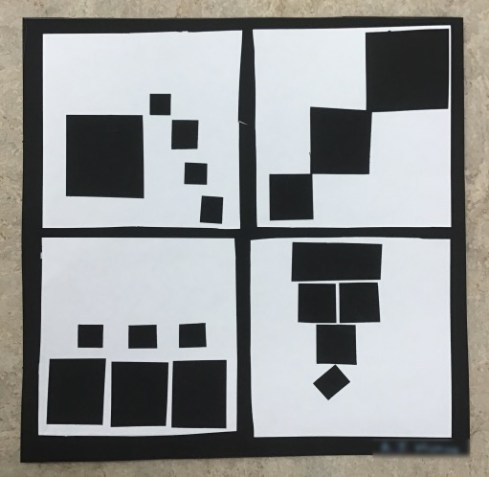
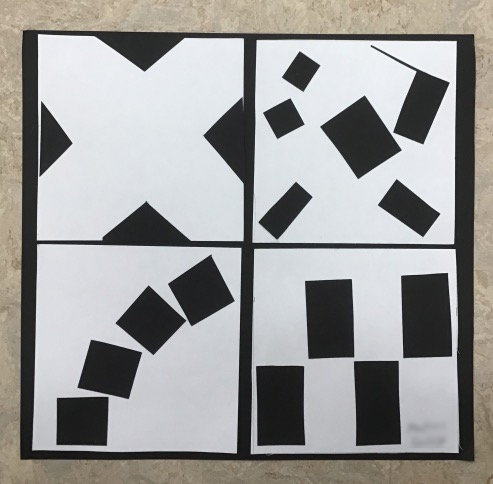
The Black Square Problem Student Examples.
screen shot 2019-01-19 at 8.37.28 pm

screen shot 2019-01-19 at 8.38.06 pm

I did this lesson with my high school students the first full week of graphic design/photo class. Computers were not all working and needed a lesson that students could do off the computers. I think it got them thinking about composition more. I think they made some better photos because of it.

screen shot 2019-01-19 at 8.31.49 pmscreen shot 2019-01-19 at 8.31.39 pm

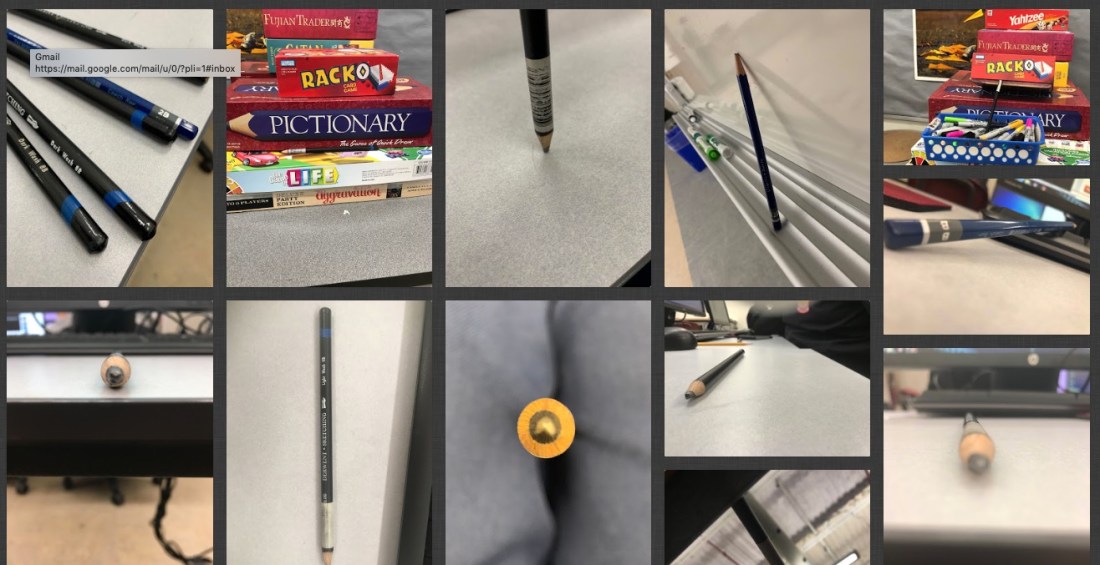
We also took photos of a pencil. How can you make a pencil look more interesting. Varying the composition and placement of it. That was towards the end of the week with the black square problem. I used Padlet to post the photos. You get 3 boards for free.

I also do the pencil photos because students are learning how to use Microsoft Teams. We are a Microsoft 365 school. It has similar features as Google for Edu. I’m getting used to it. I got the students to login to the student emails accounts. Create an email signature. Then I showed them how to access the Team I added them to. We don’t have cameras for the students they use their cell phones. They had to download the OneDrive App. Then we would upload their photos to the cloud storage. Then they downloaded them to their desktop. I’m disappointed the Microsoft Teams App doesn’t allow student to just attach the photo to their assignment from the phones. At this time you can do that using a desktop and a tablet. Worked on my iPad but not on their phones. Microsoft please change this! It’s practice. We switched to 365 at the beginning of the year. Most of my students didn’t know they had a student email account. That took a day. My classes are 44 min long.  I make them do 2 practice turn in so it helps to cut down on questions.

I have a free downloadable PDF from my TPT store you are welcome to try with this lesson. Students sketch out their ideas for playful, order, bold, and tension.

Link to Black Square Problem PDF

Then I had them measure a 10 x 10 in square. The smaller white squares are 4.5 x 4.5 in squares. Then just cut and glue down to match their best sketches.

You could also consider doing this in  Photoshop by opening the PDF file or Adobe Illustrator for a digital version and print out.

I can’t take credit for it I got the idea from a university website. I have no recall what school it was from. If you google search black square problem you will see tons of solutions.